Showing posts with label Digiscrap Tutorial. Show all posts

Tuesday, December 15, 2009

GIMP Tut: Changing element's colour using Colorize Tool

How often have got a kit but you found a certain element is not the colour you are after? Well, it's just so easy changing any element's colour in GIMP and I will show you here in just a few steps.

Some simple instructions as follows:
1. With element's layer selected, select the Colize Tool from the Colors menu
2. Click and drag the Hue slider until you have changed the element's colour to your liking.
In my example the Hue was changed to 280 to achieve a nice purple element.
3. Click OK to make the colour change permanent.
That's all, nice & easy wasn't it!


Hopefully the following screenshots are easy to follow in using this colorize feature. Let me know how you find it if you like.

TIP - Click on each screenshot for closeup.


It really is that easy. Now you have no excuse for not using any element because it's the wrong colour!

Thursday, July 2, 2009

In Perspective using GIMP - mini Tut

Got asked by Mel how to use this wonderful tool I've just discovered, so thought to help everyone out by publishing this mini tut.

HOW TO USE THE PERSPECTIVE TOOL

1. Ensure you have the element and dropshadow in seperate layers and select the dropshadow layer.
2. Select Perspective Tool (Shift+P)
3. Click and drag the corner handles to your liking.
4. When you are happy, select Transform from window.

And how do you find the result???

Wednesday, November 26, 2008

GIMP Digiscrapping Tutorial - "Installing fonts for use in GIMP"

I got asked this question by Cat not so long ago, which she managed to follow no problems. So thought to might as well share it with you GIMPsters out there if you wondered how.

1) First download, unzip, install font to C:\Windows\Fonts - refer to Dafont-faq for more instructions.

2) If GIMP is already open, exit GIMP and re-open OR with Text Tool selected, click on Font selection icon,
click on Open the font selection dialog (bottom right button),
click Rescan font list (looks like arrows pointing at each other at bottom of dialog).


The rescan may take a while, so be patient.

3) With Text Tool selected, click on canvas or new layer and type away with your newly installed font.

That's all folks.

Monday, October 20, 2008

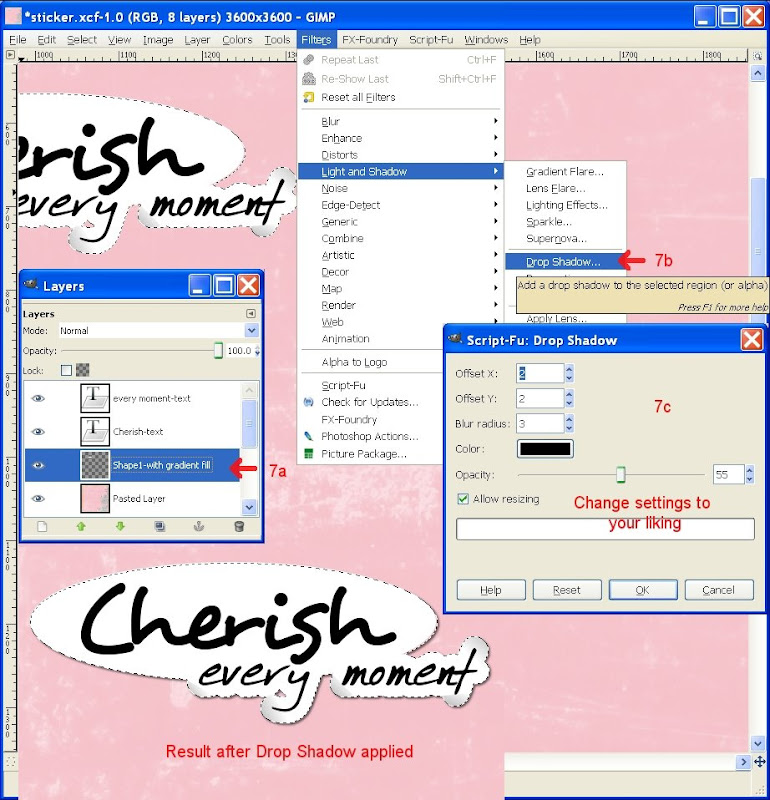
GIMP Digiscrapping Tutorial - "Creating a Sticker WordArt in Gimp"

Are you ready to give this next tut a go? Well, this is my version of creating a simple WordArt anyway...

Photobucket

Create a text layer for each WordArt line.
In this example I have "Cherish" & "every moment" using 2 layers and different font for each.
Select Elliptical select Tool (E) and with "Cherish" text layer selected, create an elliptical selection larger than "Cherish" text.


Create New Transparent layer below "Cherish" text layer, and fill with White Background colour.


Select "every moment" text layer, do Alpha to Selection, Select > Grow & grow selection by 14 px.


Create New Transparent layer below "every moment" text layer, and fill with White Background colour (Ctrl+.).


Now move your 2 newly created white filled layers together below the text layers and Merge down together.


We will now try and create a slight sticker lifting/curling using the Gradient tool to mimick shadowing.

  • Select last merged layer, do Alpha to Selection, select Free Select Tool (F) with Intersect Mode selected, and click selection points around the area where you want to have your gradient shadow & finish by clicking your first selection point to end the selection.
  • With Blend Tool selected (L), this will fill your selection with a gradient colour, pick a grey Foreground colour, Blend Mode = Normal, Opacity to your liking, Gradient set to FG to BG, shape = Linear.
  • Click & drag your mouse at an angle where you want the curling shadow to go from grey to white.
Repeat above bullet point instructions where curling shadow is required.


Finish by applying layer shadow.
From In my Digi GIMP world

Thursday, October 9, 2008

GIMP Digiscrapping Tutorial - "Lets Grunge some Title Text in Gimp"

There are endless amount of grunge brushes available, just do a google search on "Photoshop free grunge brushes", use the following site http://hawksmont.com/blog/gimp-how-to-add-brushes/ to help you with installing/adding Photoshop/GIMP brushes in GIMP. It has been a lifesaver for me in the past.

So here we go, this is what my tutorial is all about... Please leave a comment to let me know what you think.

grunge-med

Type your title in a wide font, I choose Braggadocio.
Select Eraser tool, from Brush selector pick a grungy type brush, set Opacity <= 80, Set Scale to a size so that the brush you use looks smaller than the font.


Ensure your title layer is selected, click & drag your mouse over the text and see the title getting 'grunged'.


Continue erasing/grunging all letters of your title.

Change your Foreground colour of your choice, select Alpha to Selection, and fill with ForeGround colour (Ctrl+,), Select None (Shift+Ctrl+A).
And you are done.


Credits: Automnal Sweetness QP by Choukette

Thursday, September 18, 2008

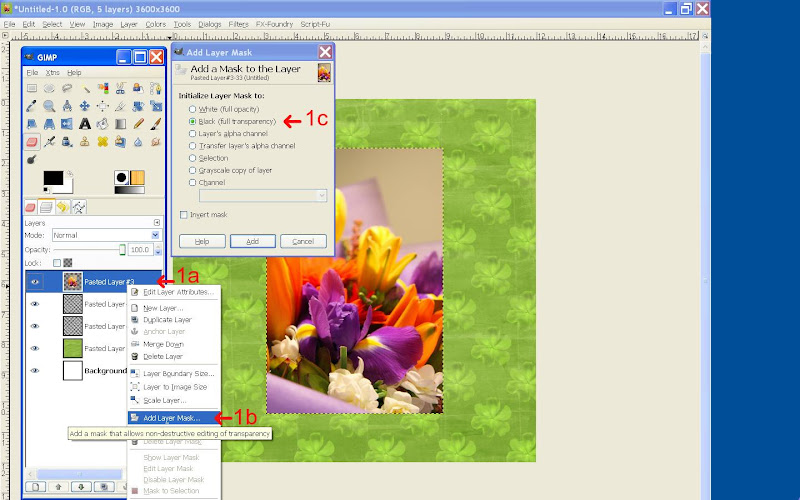
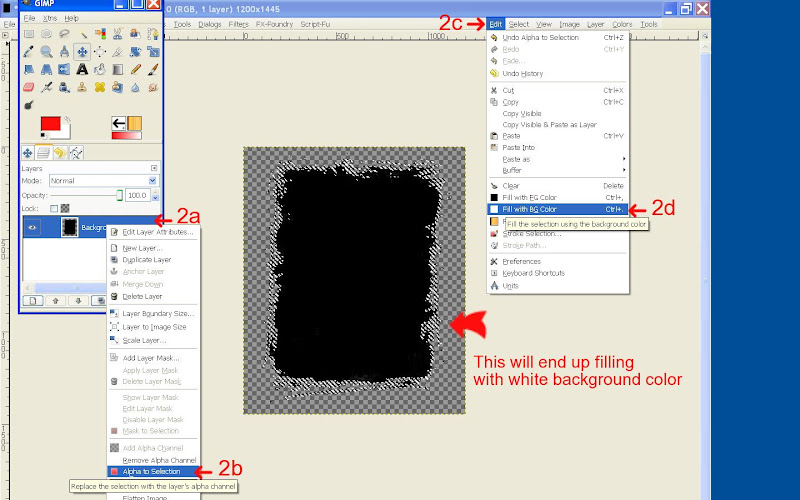
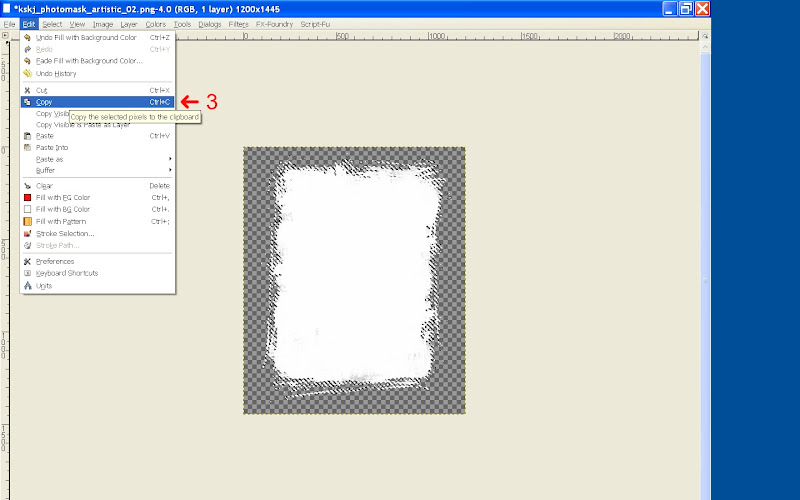
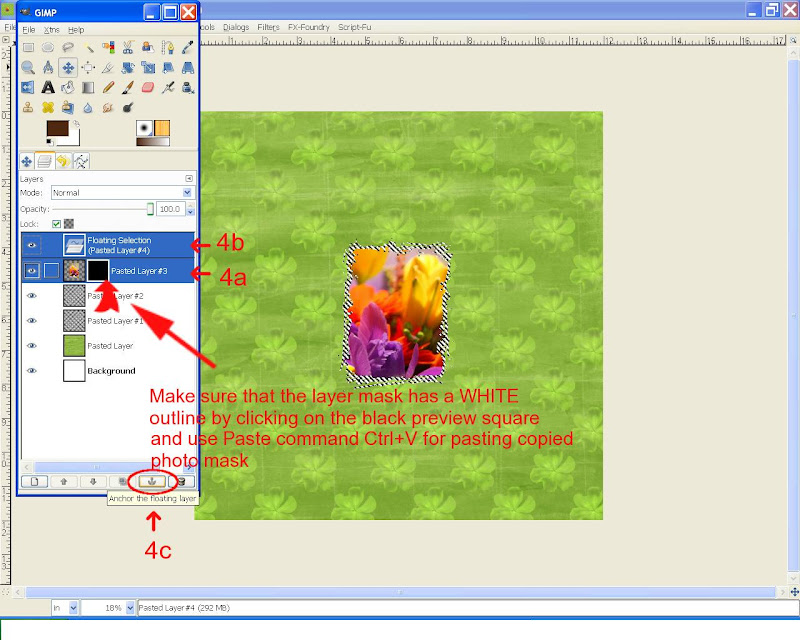
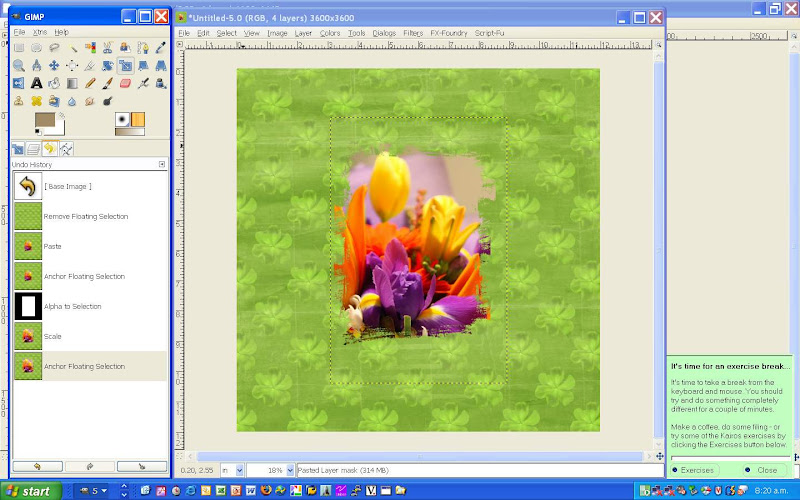
GIMP Digiscrapping Tutorial - "How to use Photo Masks in Gimp"

Here is another instalment of a Gimp Digiscrapping tutorial covering the usage of photo masks. This question was posted at ScrapbooksGoneDigital, so have created some screenshots with instructions.

Open your GIMP scrap layout:

From Blogger Pictures
Next open your Mask .png file in a separate window, keeping your GIMP scrap layout also open:
From Blogger Pictures

From Blogger Pictures

From Blogger Pictures

From Blogger Pictures

From Blogger Pictures

See my In training post for the finished LO.

Happy Gimp photo masking everyone

Credits: photomask freebie by Kristin Skjæringrud at http://www.scrapwithtemplates.com/

Sunday, September 7, 2008

Screenshots for GIMP create pencil lined (Highpass) tutorial post

Here are screenshots for my previous post...

From Blogger Pictures
From Butt-kins Web Pages
Credits: Little Dreamer Designs "VintageDreams Retro" paper

Thursday, September 4, 2008

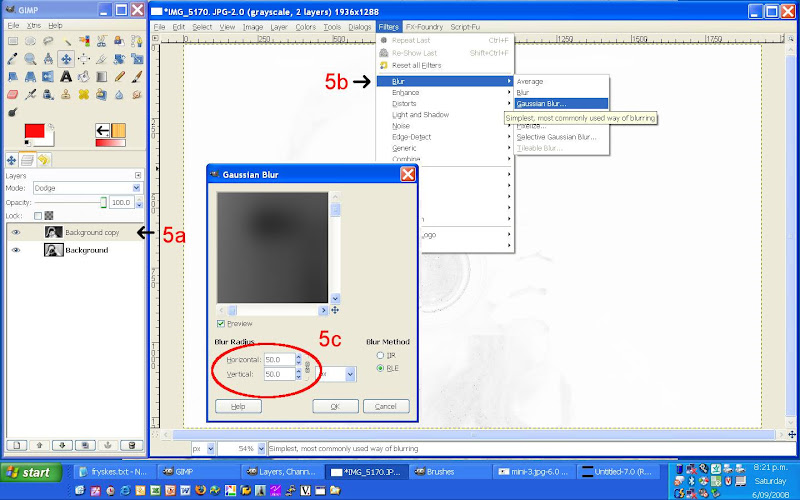
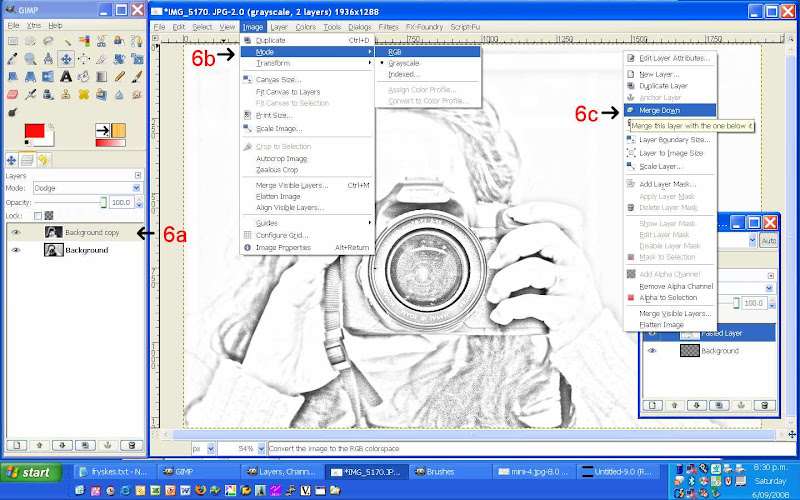
GIMP Digiscrapping Tutorial - "Create pencil lined like drawing in Gimp"

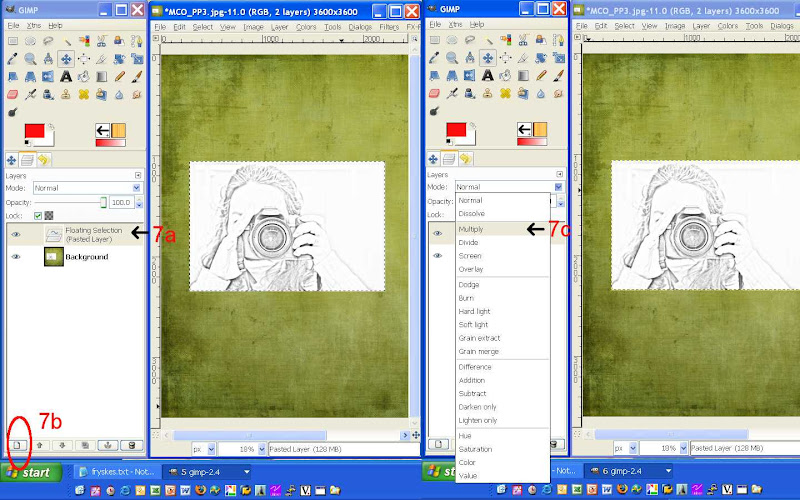
The following is a pretty cool technique to use on your photos and Scrapness over at ScrapbooksGoneDigital asked me how I did this, so here are the instructions.

Start with just a single photo and perform the following instructions:
* duplicate photo layer - apply the following to the copy of photo

* Colors > Invert
* Image > Mode > Grayscale
* set the blending to colour dodge (don't worry if your layer goes all white, the next instruction will reveal all
)
* Filter > Blur > Gaussian blur
- about 50 radius setting
* Image > mode > RGB and merge layer with 1st original photo layer
* now add just merged photo to your layout page and set blending to overlay (I used multiple) Happy scrapping

Credits: Meadow kit by Rainbow, heart messystamper by Misty Mareda, chicken wire, tied bow "Believe in" kit by Fryske, dymo font

Wednesday, July 9, 2008

GIMP Digiscrapping Tutorial - "Creating curved Elements"

I don't claim to be an expert on writing a tutorial of any sort, but hopefully you will find this useful. Let me know how you found it as I'm curious, especially how you applied it to your LOs.

I am not a designer, so have created this tut with other people's handy work. Thanks to Gratefull4U kit, yellow Duval Street paper by Elizabeth Quintana and photo frame by by Viviane at http://viviane07.blogspot.com/


Step 1

Open the background paper of your choice in it’s own layer. Create a new transparent layer, use the create new layer button on the Layer dialogue for short cut.


Step 2

From the GIMP main menu, select white as the foreground colour. Select the Rectangle Tool next and click/drag your mouse to draw a narrow rectangle. Fill it with white Foreground colour.


Step 3

From the Filter menu, select Distorts then Curve Bend


Step 4

Click points along the straight line and drag points to represent the desired curve. Select the copy button, this will ensure that the curve is copied to the lower edge of the rectangle, then select OK.


Step 5

Change to the Fuzzy Select Tool and select the white of the curved layer. From the GIMP menu select the 2nd red circled mode, and with your mouse select the space under the white curve and fill with white Foreground colour.


Step 6

Duplicate the solid white curve layer in the Layer dialogue. Add new paper to the layer stack above the duplicate curve layer. Cut new paper from the shape of the duplicate curve layer and Merge Down layer.


Step 7

To create the thin white border between the curve and background paper, select the white solid curve layer. From Layer Menu select Autocrop layer. From GIMP menu select the Alignment Tool, set Offset to -20, and select bottom right Distribute button.


This tutorial can be applied to curving text and other elements such as straight stitching too.


You want a GIMP Digiscrap tutorial?


I read a PS article on how to bend/curve and element and wondered if I could do the same in GIMP. The answer is "Yes we can!" So then tried to do a step-by-step tutorial so that my little Gimp friend Sam out there can follow. I am nearly there, just thought to post this to see if I would get any interest out there. Leave a comment if you think a tutorial describing this is useful to you or you want a specific GIMP question answered.